# Vertex AI (Google Cloud Platform)
## Overview
[overview](https://cloud.google.com/vertex-ai/docs)
### Introduction
#### ML workflow
1. **Data preparation**
- *EDA*
- For small + medium dataset: [Vertex AI Workbench](https://cloud.google.com/vertex-ai/docs/workbench/introduction)
- For large dataset: [Dataproc Serverless Spark](https://cloud.google.com/dataproc-serverless/docs/overview)
- *Storage*
- *Feature engineering*: [Vertex AI managed dataset](https://cloud.google.com/vertex-ai/docs/training/using-managed-datasets)
- *Labeling*
1. **Model training**
- *Training*
- [AutoML](https://cloud.google.com/vertex-ai/docs/beginner/beginners-guide) : without writing code and preparing data splits (`tabular`, `image`, `text`, `video`)
- [Custom training](https://cloud.google.com/vertex-ai/docs/training/overview) : control over the training process (ML framework, own training code, hyperparameter tuning options)
- [Model garden](https://cloud.google.com/vertex-ai/docs/start/explore-models) : choose the pretrain model (open-source models) to test, customize, deploy.
- [Generative AI](https://cloud.google.com/vertex-ai/generative-ai/docs/learn/overview): Access to Google large gen AI models for multiple modalities (text, code, images, speech), then tunning and deploy
- *Tuning*
- Hyper-parameters:
- For simple custom-trained models: [Custom tuning jobs](https://cloud.google.com/vertex-ai/docs/training/using-hyperparameter-tuning)
- For complex ML models: [Vertex AI Vizier](https://cloud.google.com/vertex-ai/docs/vizier/overview)
- Algorithms:
- Multi-algorithms training: [Vertex AI Experiments](https://cloud.google.com/vertex-ai/docs/experiments/intro-vertex-ai-experiments)
- Tensorflow: [Vertex AI TensorBoard](https://cloud.google.com/vertex-ai/docs/experiments/tensorboard-introduction)
- Manage model versions
- Register the version of trained models: [Vertex AI Model Registry](https://cloud.google.com/vertex-ai/docs/model-registry/introduction)
- *Evaluation* (list of [Model evaluation](https://cloud.google.com/vertex-ai/docs/evaluation/introduction))
- Evaluation in [Vertex AI Model Registry](https://cloud.google.com/vertex-ai/docs/model-registry/introduction)
- Evaluation in [Vertex AI Pipelines](https://cloud.google.com/vertex-ai/docs/pipelines/introduction)
3. **Model serving and monitoring**
- *Serving*: deploy model to production and get predictions
- For Custom training models
- Real-time [online predictions](https://cloud.google.com/vertex-ai/docs/predictions/overview#online_predictions): [prebuilt](https://cloud.google.com/vertex-ai/docs/predictions/pre-built-containers) or [custom](https://cloud.google.com/vertex-ai/docs/predictions/use-custom-container) containers
- [Batch predictions](https://cloud.google.com/vertex-ai/docs/predictions/overview#batch_predictions)
- [BigQuery ML](https://cloud.google.com/vertex-ai/docs/beginner/bqml)
- *Manage features*: [Vertex AI Feature Store](https://cloud.google.com/vertex-ai/docs/featurestore/overview) (for Tabular)
- *Explain model*: [Vertex Explainable AI](https://cloud.google.com/vertex-ai/docs/explainable-ai/overview)
- *Monitoring*: [Vertex AI Model Monitoring](https://cloud.google.com/vertex-ai/docs/model-monitoring/overview) (*training-serving skew and prediction drift and sends you alerts when the incoming prediction data skews too far from the training baseline*)
#### Training and deployment option
- [AutoML](https://cloud.google.com/vertex-ai/docs/beginner/beginners-guide) lets you train tabular, image, text, or video data without writing code or preparing data splits.
- [Custom training](https://cloud.google.com/vertex-ai/docs/training/overview) gives you complete control over the training process, including using your preferred ML framework, writing your own training code, and choosing hyperparameter tuning options.
- [Model Garden](https://cloud.google.com/vertex-ai/generative-ai/docs/model-garden/explore-models) lets you discover, test, customize, and deploy Vertex AI and select open-source (OSS) models and assets.
- [Generative AI](https://cloud.google.com/vertex-ai/generative-ai/docs/multimodal/overview) gives you access to Google's large generative AI models for multiple modalities (text, code, images, speech). You can tune Google's LLMs to meet your needs, and then deploy them for use in your AI-powered applications.
#### Vertex-ai interaction ways
- [Google Console](https://console.cloud.google.com/vertex-ai?project=ext-pinetree-dw) (graphical user interface)
- [Google Cloud command-line interface (CLI)](https://cloud.google.com/sdk/gcloud) ([`gcloud ai`](https://cloud.google.com/sdk/gcloud/reference/ai) command)
- [Terraform support for Vertex AI](https://cloud.google.com/vertex-ai/docs/start/use-terraform-vertex-ai) (Terraform)
- [Vertex AI SDK for Python](https://cloud.google.com/vertex-ai/docs/python-sdk/use-vertex-ai-python-sdk) (Python)
- [Vertex AI API REST](https://cloud.google.com/vertex-ai/docs/reference/rest) (API)
### Setup environment
1. Create project and enable billing
2. Enable Vertex AI API
3. [Install](https://cloud.google.com/sdk/docs/install) the Google Cloud CLI.
4. To [initialize](https://cloud.google.com/sdk/docs/initializing) the gcloud CLI, run the following command:
``` bash
gcloud init
```
5. Update and install `gcloud` components:
``` bash
gcloud components update
gcloud components install beta
```
6. Add role ([read doc](https://cloud.google.com/vertex-ai/docs/start/cloud-environment#ask_admin))
7. Install [Vertex AI SDK for Python](https://cloud.google.com/vertex-ai/docs/start/install-sdk)
### Training methods
[Choosing a training method](https://cloud.google.com/vertex-ai/docs/start/training-methods)
| | **AutoML** | **BigQuery ML** | **Custom training** |
| ------------------------------------------------------------------ | -------------------------------------------------------------------------------------------------------------------------------------------------------------------------------------------------------------------------------------------------------------------------------------------------------------------------------------------------------------------------------------------------------------------------------------------- | ---------------------------------------------------------------------------------------------------------------------------------------------------------------------------------------------------------------------------- | ------------------------------------------------------------------------------------------------------------------------ |
| **Characteristic** | - minimal technical effort
- quickly prototype models and explore new datasets | - train models using your BigQuery data directly in BigQuery using SQL commands
-use SQL to get batch predictions | - create a training application optimized for your targeted outcome
- control over training application functionality |
| **DS expertise** | No | No | Yes |
| **Programming ability** | No | SQL (build, evaluate model) | Yes |
| **Time to trained model** | - Lower
- Less data preparation is required, and no development is needed. | - Lower
- Don't need build the infrastructure required for batch predictions or model training, as BigQuery ML leverages the BigQuery computational engine --> increases speed to training, evaluation, and prediction. | - Higher
- More data preparation is required, and training application development is needed. |
| **Limits on machine learning objectives** | Yes (only AutoML's predefined objectives) | Yes | No |
| **Manually optimize model performance with hyperparameter tuning** | No (automated hyperparameter tuning) | Yes. BigQuery ML supports hyperparameter tuning when training ML models using [`CREATE MODEL` statements.](https://cloud.google.com/bigquery-ml/docs/reference/standard-sql/bigqueryml-hyperparameter-tuning) | Yes |
| **Control aspects of the training environment** | - Limited.
- Specify the number of node hours to train for + allow early stopping of training (for `tabular` + `image`) | No. | Yes.
- Compute Engine machine type
- Disk size
- ML framework
- Number of nodes. |
| **Limits on data size** | Yes
- [Preparing image training data](https://cloud.google.com/vertex-ai/docs/training-overview#image_data)
- [Preparing tabular training data](https://cloud.google.com/vertex-ai/docs/training-overview#tabular_data)
- [Preparing text training data](https://cloud.google.com/vertex-ai/docs/training-overview#text_data)
- [Preparing video training](https://cloud.google.com/vertex-ai/docs/training-overview#video_data) | Yes (base on [Quotas](https://cloud.google.com/bigquery-ml/quotas)) | - For unmanaged datasets: No
- For managed datasets: same **AutoML** |
### Notebook tutorials
[List of totebook tutorials](https://cloud.google.com/vertex-ai/docs/tutorials/jupyter-notebooks#vertex-ai-workbench)
## Vertex AI Notebook
Có 2 hướng tiếp cận để sử dụng được notebook:
- - **Colab Enterprise**:
- **Chia sẻ và cộng tác**: Dễ dàng chia sẻ notebook với người dùng khác, nhóm Google hoặc miền Google Workspace.
- **Quản lý hạ tầng**: Không cần quản lý hạ tầng, Colab Enterprise tự động cung cấp và tắt runtime khi không cần thiết.
- **Tích hợp dịch vụ Google Cloud**: Tích hợp với các dịch vụ như Vertex AI và BigQuery.
- **Vertex AI Workbench**:
- **Tùy chỉnh cao**: Hỗ trợ nhiều loại instance Jupyter notebook và có thể thêm môi trường conda.
- **Tích hợp dữ liệu**: Truy cập dữ liệu từ Cloud Storage và BigQuery trực tiếp trong JupyterLab.
- **Lập lịch và quản lý chi phí**: Có thể chạy notebook theo lịch trình và tự động tắt khi không hoạt động.
| **Feature** | **Colab Enterprise** | **Vertex AI Workbench** |
| ------------------------------- | ----------------------------------- | ----------------------------------- |
| *Environment* | Managed, collaborative | Customizable, developer-focused |
| *Infrastructure Management* | Serverless, managed by Google | User-controlled, flexible |
| *Collaboration* | Excellent, with IAM control | Good, with GitHub integration |
| *Compute Provisioning* | Automatic | User-configurable |
| *Data Integration* | Seamless with Google Cloud services | Seamless with Google Cloud services |
| *Code Completion* | Inline | Inline |
| *Customization* | Limited | Extensive |
| *GPU Support* | ✓ | ✓ |
| *Conda Environments* | ✗ | ✓ |
| *Custom Containers* | ✗ | ✓ |
| *Automated Notebook Runs* | ✗ | ✓ |
| *Idle Shutdown* | Automatic | Configurable |
| *Persistent Storage* | ✗ | ✓ |
| *Access to VM* | ✗ | ✓ |
| *Original Jupyter UI* | Modified | Retained |
**Khi nào nên sử dụng**:
- **Colab Enterprise**: Khi cần chia sẻ và cộng tác dễ dàng, không muốn quản lý hạ tầng.
- **Vertex AI Workbench**: Khi cần tùy chỉnh cao và tích hợp sâu với các dịch vụ dữ liệu của Google Cloud.
### Colab Enterprise
([doc](https://cloud.google.com/vertex-ai/docs/colab/create-console-quickstart))
**Key Features:**
- 🔗 **Share and Collaborate:** Easily share notebooks with individuals, Google groups, or entire Google Workspace domains. Access control is handled through Google Cloud’s IAM.
- 🌐 **Managed Compute:** Colab Enterprise takes care of provisioning and managing compute resources. It starts runtimes when needed and shuts them down when not in use.
- ✅ **Google Cloud Integration:** Seamlessly work with Google Cloud services like Vertex AI and BigQuery from within your notebook.
- ✨ **Inline Code Completion:** Write code faster with suggestions that pop up as you type.
- **Runtime**: a compute resource to run code in notebook
- **Runtime template**: configure the template to optimize a runtime's performance, cost, and other characteristics based on demand and problem.
> Read [**Machine type & disk type**](https://cloud.google.com/compute/docs/machine-resource) to select resources suitable for the purpose
**Cons:**
- **Less efficient with heavy workloads**: extended for long tasks or want the data to persist on the disk of the machine once it's turned off (or released, in this case)
- **Not control the environment**
**Pricing**: base on amount of used resources time include:
- **Compute Engine**: the virtual machine that runs the notebook
- **Storage**: data + source code
- **Networking**: Communication between notebook and other services
### Vertex AI Workbench
**Key Features:**
- 👨🏻💻 **Access to the VM:** Unlike Colab Enterprise, you get full access to the virtual machine itself, allowing for in-depth configuration tailored to your specific needs. You can integrate more easily with your GCP environment based on IAM.
- 📦 **Persistent Storage:** Data isn't lost when the machine restarts, as the VM's disk is retained, ensuring your data remains intact.
- ☑ **Controlling Instance Types:** Choose from several types of instances, including N2 CPU or any GPU offering that GCP has.
- 🤏 **Preinstalled Packages and GPU Support:** All instances come with JupyterLab and a suite of deep learning packages like TensorFlow and PyTorch, with GPU support available.
- **GitHub Integration:** Sync your notebooks with GitHub for version control and collaboration.
- 💾 **Custom Environments and Containers:** Add conda environments or create custom containers to tailor your setup to specific needs, so you don't need to install dependencies every time a team member wants to launch a new machine.
- 👾 **Data Integration:** Access Cloud Storage and BigQuery directly from JupyterLab by identifying either as the user working on the notebook or as a service account.
- 🛠️ **Automated Notebook Runs and Idle Shutdowns:** Schedule notebook runs and automatically shut down idle instances to manage costs effectively.
- 🖥️ **Original Jupyter UI:** Workbench retains more of the original Jupyter UI, providing a cleaner and more familiar interface for users accustomed to Jupyter notebooks.
**Pricing**: base on amount of used resources time include:
- **CPU + RAM + GPU (if used)**: Charge only while running instance and execute code
- **Storage (boot disk + data disk)**: alway charging even if the instance is shutdown, this is because the data is stall stored on the disk
- **Workbench management fees**: only charge when the instance is running
*Tips*
- If there is any scheduled tasks (like running notebook in the instance), those tasks will still execute even if the instance is shutdown, then this would be charged for the resources used during those executions
- Cost of **Persistent storage** base on the the actual amount of provisioned disk space. Therefore, it's still a good idea to choose a size that's appropriate for needs.
- The data should be stored in cloud storage (like buckets), you're charged based on the **amount of data you actually store** in the bucket. This is called "used storage" and is a more flexible way to pay for storage.
#### Setup Instances
##### [Create an instance](https://cloud.google.com/vertex-ai/docs/workbench/instances/create#create)
##### Instance shutdown
**Shutdown event:**
- Manual click to `shutdown`
- After the idle inactive period
- There is no kernel activity for the specified time period
> running a cell or new output printing to a notebook is activity that resets the idle shutdown timer
**Billing**:
- While your instance is shut down, there are *no CPU or GPU usage charges* except for scheduled executions that run during the shutdown
- *Disk storage charges still apply* while your instance is shut down. For more information, see [Pricing](https://cloud.google.com/vertex-ai/pricing#notebooks).
**Automated shutdown**: Shut down after being idle for a specific time period by default
**Scheduled executions**: Scheduled executions run while instance is shut down
**gcloud CLI config**:
- Create instance
```shell
gcloud workbench instances create INSTANCE_NAME --metadata=idle-timeout-seconds=86400
```
- Update instance
```shell
gcloud workbench instances update INSTANCE_NAME --metadata=idle-timeout-seconds=86400
```
##### [Change the machine type and configure GPUs](https://cloud.google.com/vertex-ai/docs/workbench/instances/change-machine-type#change_the_machine_type_and_configure_gpus)
##### [Migrate your data to a new Vertex AI Workbench instance](https://cloud.google.com/vertex-ai/docs/workbench/instances/migrate#migrate-data)
##### [Remote SSH](https://cloud.google.com/vertex-ai/docs/workbench/instances/ssh-access)
##### [Limitation](https://cloud.google.com/vertex-ai/docs/workbench/instances/introduction#limitations)
#### Schedule run noteboook
**Set scheduler**
1. Next to your instance's name, click **Open JupyterLab
2. In the folder **File Browser**, double-click the example notebook file to open it.
3. Click the  **Execute** button.
4. In the **Submit notebooks to Executor** dialog, in the **Type** field, select **Schedule-based recurring executions**.
> By default, the executor runs your notebook file every hour at the `00` minute of the hour.
5. In **Advanced options**, enter a name for your bucket in the **Cloud Storage bucket** field, and then click **Create and select**. The executor stores your notebook output in the Cloud Storage bucket.
6. Click **Submit**. Your notebook file runs automatically on the schedule that you set.
[**View, share, and import an executed notebook file**](https://cloud.google.com/vertex-ai/docs/workbench/instances/schedule-notebook-run-quickstart#view_share_and_import_an_executed_notebook_file)
#### Connect to data
##### [BigQuery Table](https://cloud.google.com/vertex-ai/docs/workbench/instances/bigquery)
###### [Browse BigQuery resources](https://cloud.google.com/vertex-ai/docs/workbench/instances/bigquery#browse_resources)
In  **BigQuery in Notebooks**. The **BigQuery** pane lists available projects and datasets
 ###### [Query by Bigquery Magic Command](https://cloud.google.com/vertex-ai/docs/workbench/instances/bigquery#query_data_by_using_the_bigquery_magic_command)
To use these magics, you must first register them. Run the `%load_ext` magic in a Jupyter notebook cell.
```python
%load_ext google.cloud.bigquery
```
The `%%bigquery` magic runs a SQL query and returns the results as a pandas `DataFrame`
```python
%%bigquery
SELECT name, SUM(number) as count
FROM `bigquery-public-data.usa_names.usa_1910_current`
GROUP BY name
ORDER BY count DESC
LIMIT 10
```
**Assign the query results to a variable**
```python
%%bigquery df
SELECT name, SUM(number) as count
FROM `bigquery-public-data.usa_names.usa_1910_current`
GROUP BY name
ORDER BY count DESC
LIMIT 10
df
```
**Explicitly specify a project**
```python
project_id = 'your-project-id'
%%bigquery --project $project_id
SELECT name, SUM(number) as count
FROM `bigquery-public-data.usa_names.usa_1910_current`
GROUP BY name
ORDER BY count DESC
LIMIT 10
```
**Run a parameterized query**
```python
params = {"limit": 10}
%%bigquery --params $params
SELECT name, SUM(number) as count
FROM `bigquery-public-data.usa_names.usa_1910_current`
GROUP BY name
ORDER BY count DESC
LIMIT @limit
```
Get a summary of data
```python
%bigquery_stats bigquery-public-data.google_trends.top_terms
```
After running for some time, an image appears with various statistics on each of the 7 variables in the `top_terms` table. The following image shows part of some example output:

###### [Query by Bigquery Client Library](https://cloud.google.com/vertex-ai/docs/workbench/instances/bigquery#query_data_by_using_the_client_library_directly)
```python
from google.cloud import bigquery
class BigqueryConnector:
def __init__(self, project_id):
self.project_id = project_id
self.client = bigquery.Client(project_id)
def read_query(
self, query: str, chunk_size: int | None = None
) -> Union[Iterator[pd.DataFrame], pd.DataFrame]:
"""
Executes a BigQuery query and returns an iterator of pandas DataFrames if chunk_size is provided,
otherwise returns a single pandas DataFrame.
"""
query_job = self.client.query(query)
result = query_job.result(page_size=chunk_size)
return (
result.to_dataframe_iterable()
if chunk_size
else result.to_dataframe()
)
def read_table(self, table_id):
table = self.read_query(f"SELECT * FROM `{table_id}`")
return table
def write_bq(self, dataframe, table_id, if_exists="append", schema=None):
write_mode = (
"WRITE_TRUNCATE" if if_exists == "replace" else "WRITE_APPEND"
)
schema = (
[
bigquery.SchemaField(
name,
type_.upper(),
"NULLABLE" if mode is None else mode.upper(),
)
for name, type_, mode in schema
]
if schema is not None
else []
)
job_config = bigquery.LoadJobConfig(
schema=schema,
write_disposition=write_mode,
)
job = self.client.load_table_from_dataframe(
dataframe, table_id, job_config=job_config
)
job.result()
# write a function to update value in bigquery
def update_bq(self, table_id, update_value, conditions={}):
for k in update_value.keys():
if isinstance(update_value[k], str):
update_value[k] = f"'{update_value[k]}'"
for k in conditions.keys():
if isinstance(conditions[k], str):
conditions[k] = f"'{conditions[k]}'"
set_stasement = ", ".join(
[f"{k} = {v}" for k, v in update_value.items()]
)
conditions = "".join(
[f" and {k} = {v}" for k, v in conditions.items()]
)
sql = f"""
UPDATE `{table_id}`
SET
{set_stasement}
WHERE
1 = 1 {conditions}
"""
# return sql
job = self.client.query(sql)
job.result()
def create_table(
self, table_id, fields, partition_by=None, cluster_by=None
):
schema = [
bigquery.SchemaField(
i["name"],
i["type"].upper(),
mode=(i["mode"] if "mode" in i else "NULLABLE"),
)
for i in fields
]
table = bigquery.Table(table_id, schema=schema)
if partition_by:
partitioning = bigquery.TimePartitioning(
type_=bigquery.TimePartitioningType.DAY,
field=partition_by,
)
table.time_partitioning = partitioning
if cluster_by:
table.clustering_fields = cluster_by
self.client.create_table(table, exists_ok=True)
print(f"Created table '{table_id}' successfully.")
```
##### [Cloud Storage buckets](https://cloud.google.com/vertex-ai/docs/workbench/instances/cloud-storage)
To mount and then access a Cloud Storage bucket, do the following:
1. In JupyterLab, make sure the folder **File Browser** tab is selected.
2. In the left sidebar, click the  **Mount shared storage** button. If you don't see the button, drag the right side of the sidebar to expand the sidebar until you see the button.
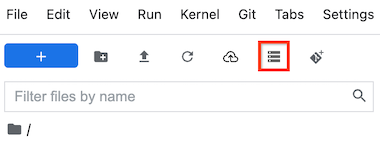
3. In the **Bucket name** field, enter the Cloud Storage bucket name that you want to mount.
4. Click **Mount**.
5. Your Cloud Storage bucket appears as a folder in the **File browser** tab of the left sidebar. Double-click the folder to open it and browse the contents.
#### [Github integration](https://cloud.google.com/vertex-ai/docs/workbench/instances/save-to-github)
#### Maintain
##### [Add a new conda environment](https://cloud.google.com/vertex-ai/docs/workbench/instances/add-environment#add_a_conda_environment)
If to want using `pip`
```shell
conda install pip
pip install
pip install -r requirements.txt
```
##### Modify a conda kernel
Vertex AI Workbench instances come with pre-installed frameworks such as PyTorch and TensorFlow. If you need a different version, you can modify the libraries by using `pip` in the relevant conda environment.
For example, if you want to upgrade PyTorch:
```shell
# Check the name of the conda environment for PyTorch
conda env list
# Activate the environment for PyTorch
conda activate pytorch
# Display the PyTorch version
python -c "import torch; print(torch.__version__)"
# Make sure to use pip from the conda environment for PyTorch
# This should be `/opt/conda/envs/pytorch/bin/pip`
which pip
# Upgrade PyTorch
pip install --upgrade torch
```
##### Delete a conda kernel
Some conda packages add default kernels to your environment when the packages are installed. For example, when you install R, conda might also add a `python3` kernel. This can cause a duplication of kernels in your environment. To avoid duplicated kernels, delete the default kernel before you create a new kernel with the same name.
```shell
rm -rf /opt/conda/envs/CONDA_ENVIRONMENT_NAME/share/jupyter/kernels/python3
```
#### [Monitor](https://cloud.google.com/vertex-ai/docs/workbench/instances/monitor-health)
#### Control access
#### [Troubleshooting](https://cloud.google.com/vertex-ai/docs/general/troubleshooting-workbench?component=any#instances)
#### Usage Tips
##### Idle Shutdown 😴
###### [Query by Bigquery Magic Command](https://cloud.google.com/vertex-ai/docs/workbench/instances/bigquery#query_data_by_using_the_bigquery_magic_command)
To use these magics, you must first register them. Run the `%load_ext` magic in a Jupyter notebook cell.
```python
%load_ext google.cloud.bigquery
```
The `%%bigquery` magic runs a SQL query and returns the results as a pandas `DataFrame`
```python
%%bigquery
SELECT name, SUM(number) as count
FROM `bigquery-public-data.usa_names.usa_1910_current`
GROUP BY name
ORDER BY count DESC
LIMIT 10
```
**Assign the query results to a variable**
```python
%%bigquery df
SELECT name, SUM(number) as count
FROM `bigquery-public-data.usa_names.usa_1910_current`
GROUP BY name
ORDER BY count DESC
LIMIT 10
df
```
**Explicitly specify a project**
```python
project_id = 'your-project-id'
%%bigquery --project $project_id
SELECT name, SUM(number) as count
FROM `bigquery-public-data.usa_names.usa_1910_current`
GROUP BY name
ORDER BY count DESC
LIMIT 10
```
**Run a parameterized query**
```python
params = {"limit": 10}
%%bigquery --params $params
SELECT name, SUM(number) as count
FROM `bigquery-public-data.usa_names.usa_1910_current`
GROUP BY name
ORDER BY count DESC
LIMIT @limit
```
Get a summary of data
```python
%bigquery_stats bigquery-public-data.google_trends.top_terms
```
After running for some time, an image appears with various statistics on each of the 7 variables in the `top_terms` table. The following image shows part of some example output:

###### [Query by Bigquery Client Library](https://cloud.google.com/vertex-ai/docs/workbench/instances/bigquery#query_data_by_using_the_client_library_directly)
```python
from google.cloud import bigquery
class BigqueryConnector:
def __init__(self, project_id):
self.project_id = project_id
self.client = bigquery.Client(project_id)
def read_query(
self, query: str, chunk_size: int | None = None
) -> Union[Iterator[pd.DataFrame], pd.DataFrame]:
"""
Executes a BigQuery query and returns an iterator of pandas DataFrames if chunk_size is provided,
otherwise returns a single pandas DataFrame.
"""
query_job = self.client.query(query)
result = query_job.result(page_size=chunk_size)
return (
result.to_dataframe_iterable()
if chunk_size
else result.to_dataframe()
)
def read_table(self, table_id):
table = self.read_query(f"SELECT * FROM `{table_id}`")
return table
def write_bq(self, dataframe, table_id, if_exists="append", schema=None):
write_mode = (
"WRITE_TRUNCATE" if if_exists == "replace" else "WRITE_APPEND"
)
schema = (
[
bigquery.SchemaField(
name,
type_.upper(),
"NULLABLE" if mode is None else mode.upper(),
)
for name, type_, mode in schema
]
if schema is not None
else []
)
job_config = bigquery.LoadJobConfig(
schema=schema,
write_disposition=write_mode,
)
job = self.client.load_table_from_dataframe(
dataframe, table_id, job_config=job_config
)
job.result()
# write a function to update value in bigquery
def update_bq(self, table_id, update_value, conditions={}):
for k in update_value.keys():
if isinstance(update_value[k], str):
update_value[k] = f"'{update_value[k]}'"
for k in conditions.keys():
if isinstance(conditions[k], str):
conditions[k] = f"'{conditions[k]}'"
set_stasement = ", ".join(
[f"{k} = {v}" for k, v in update_value.items()]
)
conditions = "".join(
[f" and {k} = {v}" for k, v in conditions.items()]
)
sql = f"""
UPDATE `{table_id}`
SET
{set_stasement}
WHERE
1 = 1 {conditions}
"""
# return sql
job = self.client.query(sql)
job.result()
def create_table(
self, table_id, fields, partition_by=None, cluster_by=None
):
schema = [
bigquery.SchemaField(
i["name"],
i["type"].upper(),
mode=(i["mode"] if "mode" in i else "NULLABLE"),
)
for i in fields
]
table = bigquery.Table(table_id, schema=schema)
if partition_by:
partitioning = bigquery.TimePartitioning(
type_=bigquery.TimePartitioningType.DAY,
field=partition_by,
)
table.time_partitioning = partitioning
if cluster_by:
table.clustering_fields = cluster_by
self.client.create_table(table, exists_ok=True)
print(f"Created table '{table_id}' successfully.")
```
##### [Cloud Storage buckets](https://cloud.google.com/vertex-ai/docs/workbench/instances/cloud-storage)
To mount and then access a Cloud Storage bucket, do the following:
1. In JupyterLab, make sure the folder **File Browser** tab is selected.
2. In the left sidebar, click the  **Mount shared storage** button. If you don't see the button, drag the right side of the sidebar to expand the sidebar until you see the button.

3. In the **Bucket name** field, enter the Cloud Storage bucket name that you want to mount.
4. Click **Mount**.
5. Your Cloud Storage bucket appears as a folder in the **File browser** tab of the left sidebar. Double-click the folder to open it and browse the contents.
#### [Github integration](https://cloud.google.com/vertex-ai/docs/workbench/instances/save-to-github)
#### Maintain
##### [Add a new conda environment](https://cloud.google.com/vertex-ai/docs/workbench/instances/add-environment#add_a_conda_environment)
If to want using `pip`
```shell
conda install pip
pip install
pip install -r requirements.txt
```
##### Modify a conda kernel
Vertex AI Workbench instances come with pre-installed frameworks such as PyTorch and TensorFlow. If you need a different version, you can modify the libraries by using `pip` in the relevant conda environment.
For example, if you want to upgrade PyTorch:
```shell
# Check the name of the conda environment for PyTorch
conda env list
# Activate the environment for PyTorch
conda activate pytorch
# Display the PyTorch version
python -c "import torch; print(torch.__version__)"
# Make sure to use pip from the conda environment for PyTorch
# This should be `/opt/conda/envs/pytorch/bin/pip`
which pip
# Upgrade PyTorch
pip install --upgrade torch
```
##### Delete a conda kernel
Some conda packages add default kernels to your environment when the packages are installed. For example, when you install R, conda might also add a `python3` kernel. This can cause a duplication of kernels in your environment. To avoid duplicated kernels, delete the default kernel before you create a new kernel with the same name.
```shell
rm -rf /opt/conda/envs/CONDA_ENVIRONMENT_NAME/share/jupyter/kernels/python3
```
#### [Monitor](https://cloud.google.com/vertex-ai/docs/workbench/instances/monitor-health)
#### Control access
#### [Troubleshooting](https://cloud.google.com/vertex-ai/docs/general/troubleshooting-workbench?component=any#instances)
#### Usage Tips
##### Idle Shutdown 😴
 **Purpose**: automatically turns off your notebook or virtual machine when you haven’t used it for a while
1. **Save Money**: When your notebook sits idle, it’s still using resources that you’re paying for. With auto-shutdown, you avoid those costs by having the system shut down on its own. This can really cut down on expenses (especially when using GPUs like A100).
2. **Make the Most of Resources**: Cloud providers have a limited number of resources to go around. If your notebook is just sitting there doing nothing, it’s using up space that could be used by others. Auto-shutdown helps free up those resources for everyone to use, making the cloud system work better for everyone.
3. **Eco-Friendly:** Less idle notebooks mean less energy is being used. This is good for the environment because it helps reduce the energy needed to run data centers, which in turn lowers the carbon footprint.
##### Add tags/label 🏷️
**Purpose**: Label instance or service in Google Cloud, help to organize resources better
1. **Control Access**: Tags allow you to set specific access controls and permissions based on them.
2. **Save Money:** Tags help you track costs. You can set alerts for stuff with certain tags, so you know how much you’re spending.
3. **Stay Organized**: Tags group things based on where they belong, like “production,” “development,” or by team. It keeps everything in order.
4. **Manage Operations**: Tags make it easier for tools that work with Google Cloud to organize resources. This is especially useful for keeping track of what’s happening, reporting, and watching over resources.
5. **Find Things Quickly**: In the Google Cloud Console or using the `gcloud` tool, tags help you spot things fast.
##### Update the Python version
**Purpose**: change to a different Python version
**Step in Terminal**
1. Open `Terminal`
2. Create the Python environment called `py311` using `conda create` command.
```shell
conda create -n py311 python=3.11 --y
```
3. Once created activate it as follows:
```shell
conda activate py311
```
4. Install the IPython kernel (`ipykernel`), that allows users to interactively run Python code and display the output within a notebook
```shell
conda install ipykernel
```
Install `IPython`
```shell
ipython kernel install --name "py311" --user
```
**Step by `bash script`**
1. Create a bash file: `create_conda_env.sh`
```bash
#!/bin/bash
# Check if the correct number of arguments are provided
if [ "$#" -ne 2 ]; then
echo "Usage: $0 environment_name python_version"
exit 1
fi
ENV_NAME=$1
PYTHON_VERSION=$2
# Create a new conda environment with the provided name and Python version
conda create -n $ENV_NAME python=$PYTHON_VERSION --yes
# Activate the new environment
conda activate $ENV_NAME
# Install ipykernel in the activated environment
conda install ipykernel --yes
# Install the environment as an IPython kernel
ipython kernel install --name "$ENV_NAME" --user
```
2. Execute bash file
```shell
# give it execute permissions
chmod +x create_conda_env.sh
# run it in a terminal
./create_conda_env.sh py311 3.11
# If you work on a GPU with a preinstalled conda version you can update conda
conda install cudatoolkit=CUDA_VERSON -y
```
#### [Notebook example](https://cloud.google.com/vertex-ai/docs/workbench/notebooks#notebook-list)
## Model workflow development
| **BigQuery Type** | **JSON Type** | **Example value** |
| ----------------- | ------------- | ---------------------------------- |
| String | String | "abc" |
| Integer | Integer | 1 |
| Float | Float | 1.2 |
| Numeric | Float | 4925.000000000 |
| Boolean | Boolean | true |
| TimeStamp | String | "2019-01-01 23:59:59.999999+00:00" |
| Date | String | "2018-12-31" |
| Time | String | "23:59:59.999999" |
| DateTime | String | "2019-01-01T00:00:00" |
| Record | Object | { "A": 1,"B": 2} |
| Repeated Type | Array[Type] | [1, 2] |
| Nested Record | Object | {"A": {"a": 0}, "B": 1} |
**Purpose**: automatically turns off your notebook or virtual machine when you haven’t used it for a while
1. **Save Money**: When your notebook sits idle, it’s still using resources that you’re paying for. With auto-shutdown, you avoid those costs by having the system shut down on its own. This can really cut down on expenses (especially when using GPUs like A100).
2. **Make the Most of Resources**: Cloud providers have a limited number of resources to go around. If your notebook is just sitting there doing nothing, it’s using up space that could be used by others. Auto-shutdown helps free up those resources for everyone to use, making the cloud system work better for everyone.
3. **Eco-Friendly:** Less idle notebooks mean less energy is being used. This is good for the environment because it helps reduce the energy needed to run data centers, which in turn lowers the carbon footprint.
##### Add tags/label 🏷️
**Purpose**: Label instance or service in Google Cloud, help to organize resources better
1. **Control Access**: Tags allow you to set specific access controls and permissions based on them.
2. **Save Money:** Tags help you track costs. You can set alerts for stuff with certain tags, so you know how much you’re spending.
3. **Stay Organized**: Tags group things based on where they belong, like “production,” “development,” or by team. It keeps everything in order.
4. **Manage Operations**: Tags make it easier for tools that work with Google Cloud to organize resources. This is especially useful for keeping track of what’s happening, reporting, and watching over resources.
5. **Find Things Quickly**: In the Google Cloud Console or using the `gcloud` tool, tags help you spot things fast.
##### Update the Python version
**Purpose**: change to a different Python version
**Step in Terminal**
1. Open `Terminal`
2. Create the Python environment called `py311` using `conda create` command.
```shell
conda create -n py311 python=3.11 --y
```
3. Once created activate it as follows:
```shell
conda activate py311
```
4. Install the IPython kernel (`ipykernel`), that allows users to interactively run Python code and display the output within a notebook
```shell
conda install ipykernel
```
Install `IPython`
```shell
ipython kernel install --name "py311" --user
```
**Step by `bash script`**
1. Create a bash file: `create_conda_env.sh`
```bash
#!/bin/bash
# Check if the correct number of arguments are provided
if [ "$#" -ne 2 ]; then
echo "Usage: $0 environment_name python_version"
exit 1
fi
ENV_NAME=$1
PYTHON_VERSION=$2
# Create a new conda environment with the provided name and Python version
conda create -n $ENV_NAME python=$PYTHON_VERSION --yes
# Activate the new environment
conda activate $ENV_NAME
# Install ipykernel in the activated environment
conda install ipykernel --yes
# Install the environment as an IPython kernel
ipython kernel install --name "$ENV_NAME" --user
```
2. Execute bash file
```shell
# give it execute permissions
chmod +x create_conda_env.sh
# run it in a terminal
./create_conda_env.sh py311 3.11
# If you work on a GPU with a preinstalled conda version you can update conda
conda install cudatoolkit=CUDA_VERSON -y
```
#### [Notebook example](https://cloud.google.com/vertex-ai/docs/workbench/notebooks#notebook-list)
## Model workflow development
| **BigQuery Type** | **JSON Type** | **Example value** |
| ----------------- | ------------- | ---------------------------------- |
| String | String | "abc" |
| Integer | Integer | 1 |
| Float | Float | 1.2 |
| Numeric | Float | 4925.000000000 |
| Boolean | Boolean | true |
| TimeStamp | String | "2019-01-01 23:59:59.999999+00:00" |
| Date | String | "2018-12-31" |
| Time | String | "23:59:59.999999" |
| DateTime | String | "2019-01-01T00:00:00" |
| Record | Object | { "A": 1,"B": 2} |
| Repeated Type | Array[Type] | [1, 2] |
| Nested Record | Object | {"A": {"a": 0}, "B": 1} |